How Do I Post on SoundCloud from Phone or Desktop
Your finished track is sitting in a folder, the cover image is ready, and you're staring at SoundCloud wondering whether to upload from your phone or open your laptop. You want people to hear the right version, but you don't want an unfinished title, missing credit, or accidental public release.
If you're asking, “How do I post on SoundCloud?”, the short answer is to select your audio file, complete the track details, choose its visibility, and save it. The better answer is to treat that upload as a release: check the file and permissions before making it public, then test what listeners hear.
Table of Contents
- File Limits Before You Post
- How to Post the Audio File
- Rights to Clear Before Going Public
- Titles Artwork Privacy and Sharing
- Scheduling Replacement and Program Gates
- Verify the Live Track and Share It
File Limits Before You Post
An upload can fail before you ever reach the title or artwork fields. According to SoundCloud's developer documentation, an individual upload can be as large as 4 GB and contain up to 24 hours of audio, with the same requirements applying through the platform interface and API; the referenced artist-subscription terms also specify 20 hours of total monthly upload time.
Those are separate checks. The file-size ceiling concerns storage, the duration ceiling concerns the length of an individual recording, and the monthly allowance concerns how much audio you upload across your account.
Separate file limits from account allowances
SoundCloud upload limits to check first
| Constraint | Limit | Who it affects |
|---|---|---|
| Single file size | 4 GB | Every upload on the site and via the API |
| Single file duration | Up to 24 hours | Every upload |
| Accepted formats | MP3, AAC, FLAC, WAV, AIFF, OGG, MP2, AMR, WMA | Every upload; audio is transcoded for streaming |
| Monthly upload time | 20 hours | Referenced artist-subscription terms |
| Number of sounds | Unlimited if file and monthly limits still fit | Next Pro and Artist Pro |
“Unlimited sounds” doesn't mean every file can be any size, or that the monthly time allowance disappears. Check the allowance attached to your account before preparing a batch of releases, particularly if you publish long DJ mixes.
A short song and an extended set can both fit the individual upload rules while using very different amounts of your available upload time. Don't assume a plan's track-count wording tells you everything about its limits.
Prepare the export you actually want listeners to hear
Export your approved master from your music software, then inspect the file in Finder, File Explorer, or your phone's file manager. Check both its size and its duration rather than relying on the project's timeline.
- Choose a supported format. A WAV bounce and an MP3 export can both be uploaded. SoundCloud transcodes uploaded audio for streaming, so listen to the resulting stream as well as your original file.
- Identify the final version. Use a filename that distinguishes the approved master from rough mixes, backing versions, and earlier exports.
- Check long recordings against your allowance. If a DJ mix would exceed your remaining upload time, edit it deliberately or resolve the account allowance before starting.
- Keep the original. Don't delete your local master while the upload is transferring or processing.
Practical rule: Passing the file-size check doesn't prove that a recording fits your account's upload allowance.
For a Friday release, do this preparation before release day. An oversized export is easier to fix while you still have time to reopen the session, rather than while collaborators are waiting for a live link.
How to Post the Audio File
Phone and desktop aren't different publishing strategies. They're entry points into the same job: transfer the approved audio, save the track, and check the processed result.
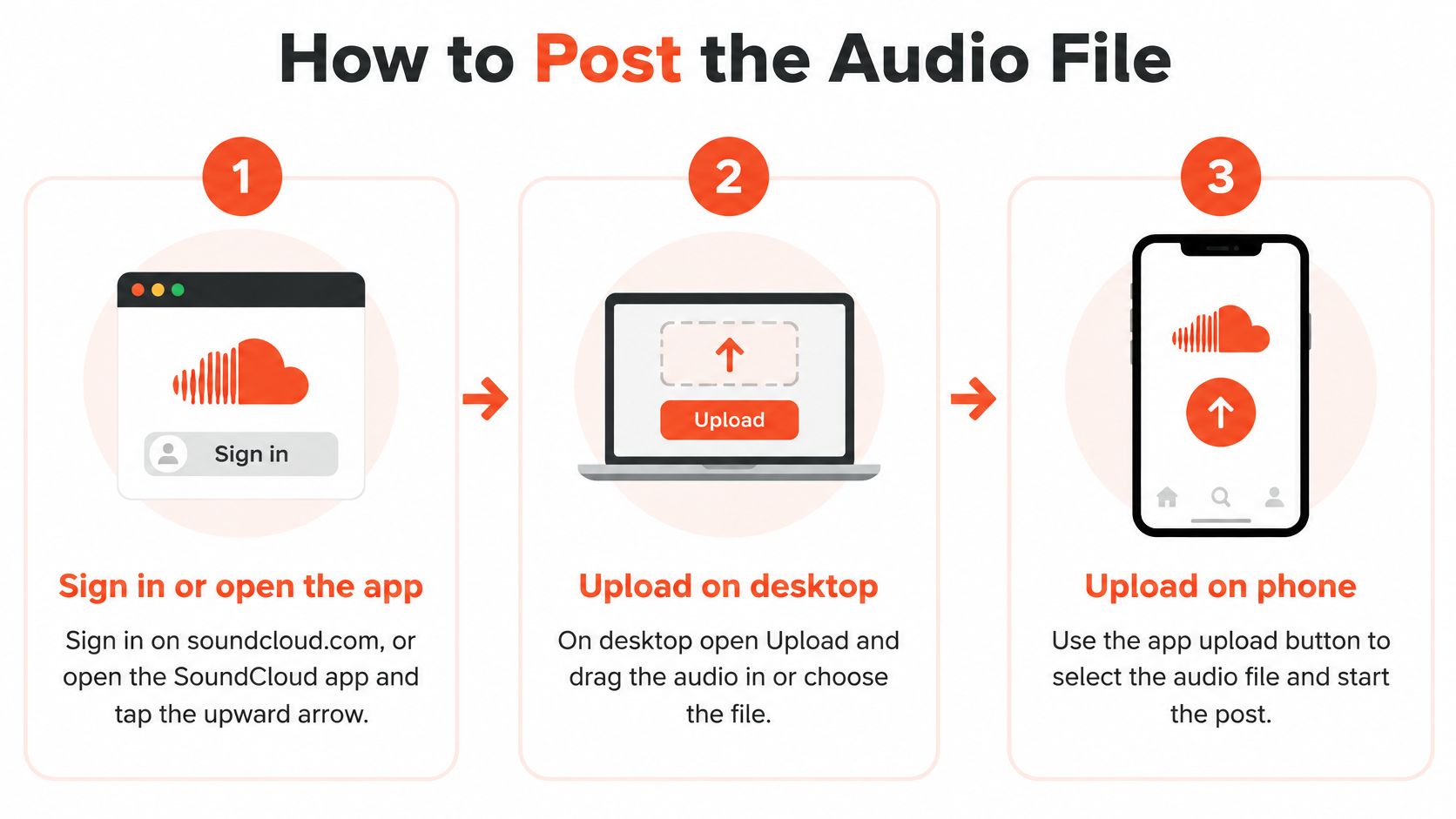
The controls differ slightly, but you don't need to learn separate workflows. SoundCloud's app upload guide identifies the upward-pointing arrow as the mobile upload control and explains how to select a file, verify its details, choose privacy, and tap Save.
Use one shared upload sequence
Sign in to the correct account. On desktop, sign in on SoundCloud's website. On your phone, open the SoundCloud app and tap the upward-pointing arrow. If you manage an artist profile and a personal profile, check the account before selecting anything.
Choose your audio file. On desktop, open Upload, then drag the file into the upload area or browse to it. In the app, select it from local storage or an accessible folder in iCloud, Google Drive, or Dropbox. Choose the exported audio, not your music software's project file.
Let the transfer finish. Keep the upload screen open and avoid switching networks while your phone is sending the file. A file selected from cloud storage may need to become available on the device before the upload can proceed.
Check that a usable title is present. Make sure you can identify the draft and save it. If your release details aren't finished, don't rush through tags, artwork, and the description just to make the upload look complete.
Choose the visibility deliberately. Select private if you still need a listen-back or listing review. Choose public only when the release details are finished and you've completed the rights check below.
Save and allow processing to finish. Tap Save in the app or use the desktop's save or publish control. Don't close the tab immediately after the transfer ends. Processing is what prepares the uploaded recording for playback.
Fix file access before starting another upload
If the app can't see your recording, open your phone's file manager and locate the export. Move or download it into local storage, or place it in a connected cloud folder that the file picker can access.
Then return to file selection. Starting another empty upload won't fix a file that your phone can't locate.
After processing, a public track becomes available on your profile. A private track stays off the public profile and gives you space to hear the stream before announcing the release.
The transfer finishing means SoundCloud has received the file. It doesn't mean you've checked the listener's version.
For feedback that doesn't need to happen inside SoundCloud, LinkShip's guide to secure MP3 sharing links explains another browser-playback sharing route. Keep any review copy clearly labeled so collaborators don't mistake it for the release link.
Don't assume a private upload automatically gives you access to audio replacement. If the export is wrong, check your account's available editing controls before deciding how to correct the draft.
Rights to Clear Before Going Public
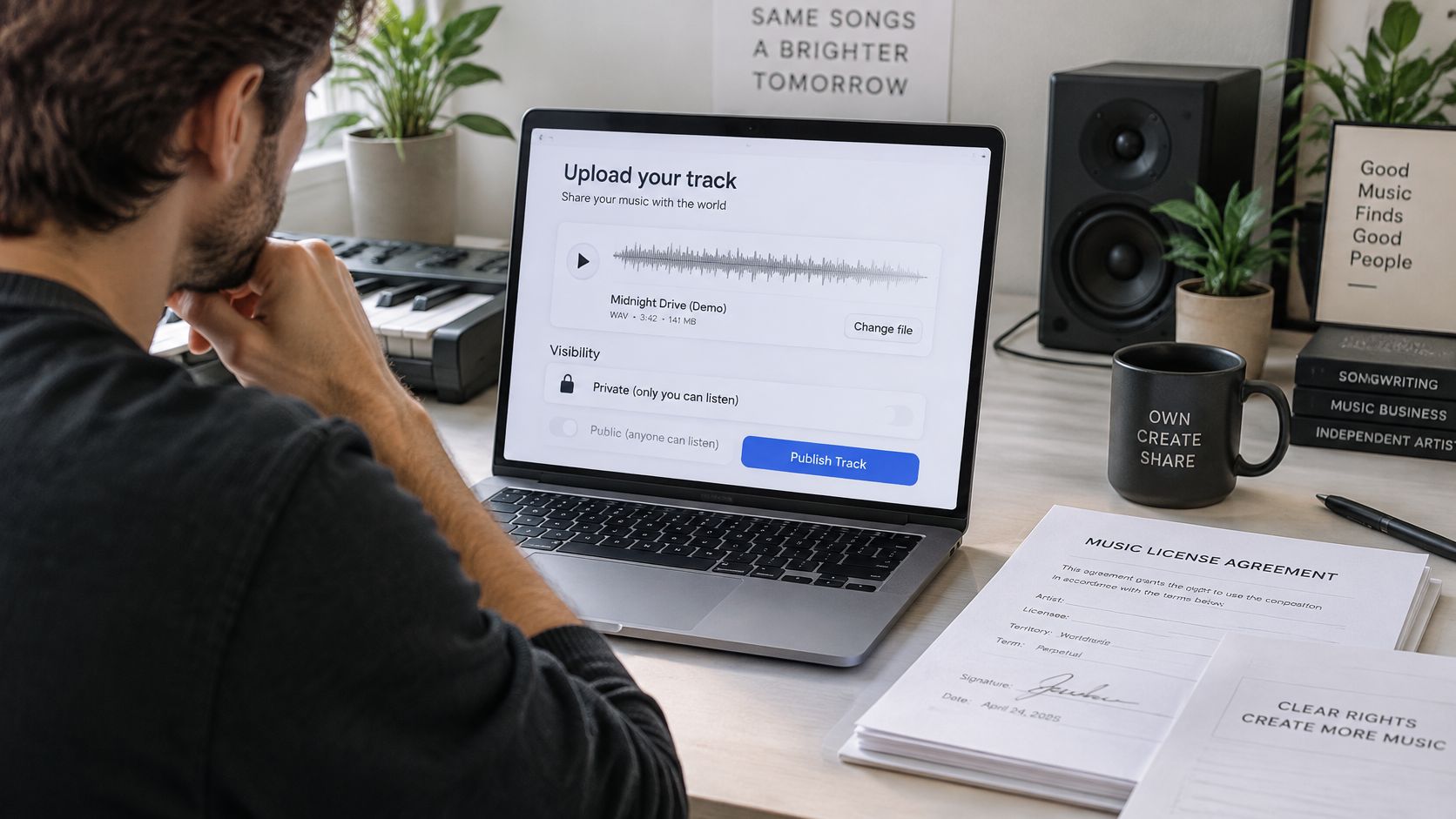
Buying a beat doesn't automatically mean you can publish every recording you make with it. A download receipt proves you obtained a file, not that the license permits a public SoundCloud release.
SoundCloud's guidance on uploading bought or free tracks makes that distinction explicit: buying or downloading a track doesn't grant permission to upload or publicly share it. Permission needs to cover what you're doing with the material.
Clear each layer separately
Rights layers to clear before going public
| Layer | Permission needed | Common failure |
|---|---|---|
| Recording | Master owned or licensed for public release | Bought or downloaded track posted without permission |
| Composition | Writer's rights or license covering the song | Cover or remix of someone else's song |
| Samples | Clearance from each sample owner | Unlicensed loop inside a beat |
| Artwork | Owned or licensed image matching title and artist credit | Found image used as cover |
| Featured performers | Written agreement from each collaborator | Guest vocal posted without consent |
| AI-assisted audio | Appropriate rights or licensing; may face review | Unlicensed AI-generated material published or monetized |
The master is the particular recording. The composition is the underlying song, including its music and lyrics. Owning your recorded performance doesn't automatically give you permission to use someone else's composition or an existing recording sampled inside it.
For background on those distinctions, LesFM's guide can help you understand sync and master rights. Sync concerns pairing music with visuals, so don't confuse a permission for a video with permission for an audio-only release.
Read the permission for the intended use
Say you recorded vocals over a beat sold under a non-commercial license. Before posting, read whether the license permits public streaming, what credit it requires, and whether monetization is excluded.
A remix, cover, or DJ mix deserves the same scrutiny. You may legally own the records used in a set without holding permission to publish that set online.
Ask collaborators to approve their performance credit and agree to the release in writing. Keep that agreement alongside beat licenses, sample permissions, and artwork licenses, rather than scattered across messages.
- Recording. Identify who owns the finished master and who can authorize its release.
- Song. Confirm the writers and any permission needed for material you didn't write.
- Samples. List borrowed recordings or loops and retain the license covering their use.
- Artwork. Save proof that you own the image or can use it as release artwork.
- Features. Confirm each guest's consent, credited name, and agreed use of the performance.
Private visibility isn't a rights clearance, especially when recipients pass the preview around. Monetization and wider distribution require proper rights or licenses and can involve additional documentation.
AI-assisted audio isn't an exception. Only appropriately licensed or rights-cleared AI content can be distributed or monetized, and some submissions may require review. If a permission is unclear, resolve it before releasing rather than treating successful uploading as approval.
Titles Artwork Privacy and Sharing
The file may sound finished while the listing still looks like a working folder. A title such as final_mix_revised tells listeners nothing about the artist or the release.
Fill the fields as if someone unfamiliar with you will encounter the track on its own. They should be able to identify the music, understand the credits, and recognize the release without opening another page.
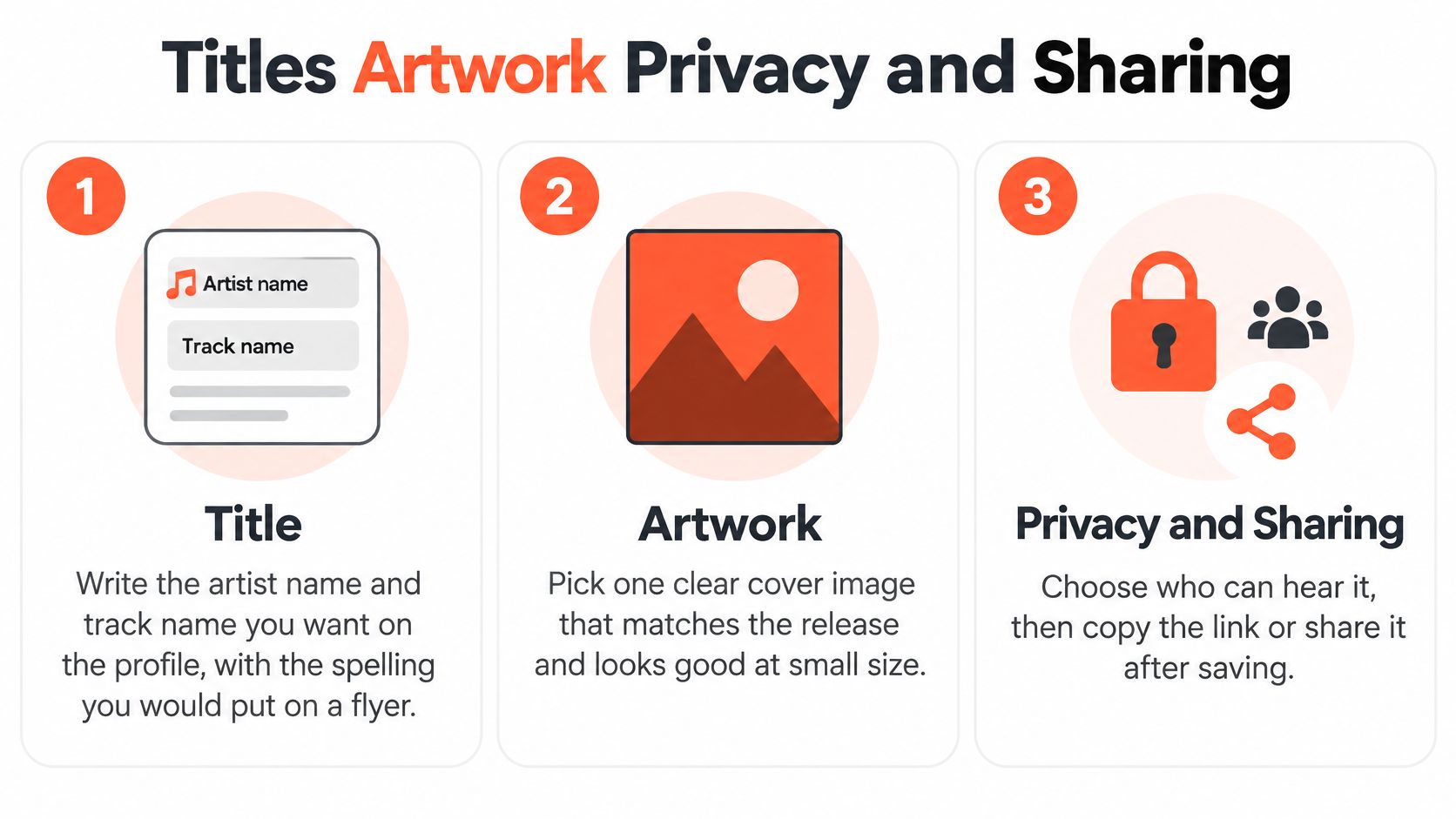
Make the listing recognizable
Title. Use the artist name and track name you want associated with the release, with the spelling you'd put on a flyer. Keep version labels meaningful, such as Live Mix, rather than leaving internal export notes in the public title.
Genre. Choose the label that best describes what listeners will hear. A melodic house track doesn't become pop because you hope to attract a broader audience.
Description. Explain the release in a few useful lines. Include collaborators under the names they use professionally, relevant scene or city context, and whether the upload is a single, DJ mix, or work in progress.
A description could say: “Melodic house from Bristol, with vocals by Mira Lane. Produced and mixed by North Quay.” This hypothetical listing gives listeners context and credits without burying the track under a long biography.
Tags. Add terms that describe the style and, where relevant, the city or scene. Skip unrelated genre tags. Attracting someone who wanted a completely different kind of music won't help them understand your release.
Artwork and labeling. Use a cover you own or have licensed, and check it at thumbnail size. Any words on the image should match the release title and artist credit. Mark explicit content when the lyrics or sampled material call for it.
Decide what recipients should receive
Use the private draft to review the actual listing, not just the separate image and text files on your computer. Look for cropped artwork, an omitted collaborator, or a description that still calls the release a demo.
- For collaborators. Send the intended private preview and explain what feedback you need. Ask about the vocal balance, credits, or artwork rather than sending an unexplained link.
- For listeners. Share the finished track URL once the release is public. Don't send an old preview out of habit.
- For a website or blog. Use the track's sharing controls to obtain its embed code, then paste that code into an embed or HTML block.
An ordinary track URL and embed code serve different purposes. The URL opens the track page; the embed places a player inside another page.
For a broader explanation of the artist workspace around your listing, the SoundCloud for Artists guide provides useful context. Keep release details consistent wherever you present the music so listeners aren't left wondering whether they've found a different version.
Scheduling Replacement and Program Gates
A published track, a scheduled release, an approved monetization submission, and an Amplify-eligible track are different things. Completing the upload doesn't automatically complete the others.
Choose the controls that match your release goal. If you want your audience to hear a finished mix, you don't need to reshape it to satisfy a discovery program's rules.
Set timing and preserve the release
SoundCloud's Artist Pro feature guide describes scheduling a private track to become public on a selected date and replacing its audio without losing existing plays or likes. Those controls let you prepare early and correct the master without rebuilding the release page.
Scheduling is useful when you've already approved the audio, credits, and cover. It removes the need to sit at your laptop waiting to publish, but it doesn't replace a final check of the scheduled date and visibility.
Replacement solves a different problem. If you discover an incorrect export after release, updating the existing track preserves the engagement attached to that post.
Release check: Put publication, monetization review, and promotional posts on separate lines in your calendar. They don't necessarily become active together.
For the wider sequence, use a music release strategy that gives you time for approvals and listener-facing announcements. If you're supporting the track with clips, Hooked can help you plan your TikTok posting calendar around the release rather than announcing music that isn't available yet.
Submit monetization separately
According to SoundCloud's monetization dashboard guide, eligible tracks must be owned by the artist or legally cleared for monetization, and approval normally takes up to 5 business days. Submit through the SoundCloud for Artists dashboard rather than expecting publication alone to activate earnings.
Check the submission's status after review. SoundCloud confirms active monetization when the dashboard reads “Monetizing” and displays the blue dollar-sign indicator.
Check whether Amplify can consider the track
SoundCloud's Amplify eligibility guide requires public music longer than 1 minute and under 10 minutes, uploaded or made public within the previous 14 days, and recommends up to 30 tracks per day per subscriber, with only the first 30 considered.
Amplify gates after a track is public
| Rule | Requirement |
|---|---|
| Visibility | Public |
| Content type | Music, not a podcast, ASMR recording, or spoken-word upload |
| Length | Longer than 1 minute and under 10 minutes |
| Recency | Uploaded or made public within the previous 14 days |
| Daily submissions | Up to 30 tracks per subscriber; only the first 30 are considered |
| Go+ restriction | Tracks limited to Go+ subscribers are not eligible |
These are program gates, not general posting rules. For example, a hypothetical forty-minute DJ mix can still be a normal SoundCloud post if it meets the upload requirements and is rights-cleared; it won't meet Amplify's length requirement.
Eligibility also isn't a promise of listener response. Keep the full release appropriate for your audience instead of making arbitrary cuts solely to fit a program.
Verify the Live Track and Share It
Open the public track in a private browser window or on another device without your creator account signed in. Play the opening and check the ending too, especially if your export included silence, a fade, or a transition.
- Confirm the presentation. Check the title, artwork, genre, description, explicit label, and profile placement.
- Confirm the version. Listen for the changes that distinguish the approved master from earlier exports.
- Update your destinations. Send collaborators the live URL and test the player on your website or blog.
Outside promotion is optional and comes after that playback check. Our guide to getting more views on SoundCloud can help you decide what to do once listeners have a finished track to visit.
SCHelper can help grow a fresh profile, promote mixes, or build a listener base between releases. We connect through SoundCloud OAuth and don't store your password. Daniel describes the fit this way: “SCHelper made it possible for me to connect with listeners who like my style.”
SCHelper offers curated listener recommendations based on artists whose audiences match your sound and scene. Once your track is public and checked, visit SCHelper to explore a focused way to find relevant listeners around your release.